ESP (fuser overlay)
The ESP section (Ctrl 5) configures the overlay drawn on the game screen through your fuser. Chams live under Writes because they change the game process.
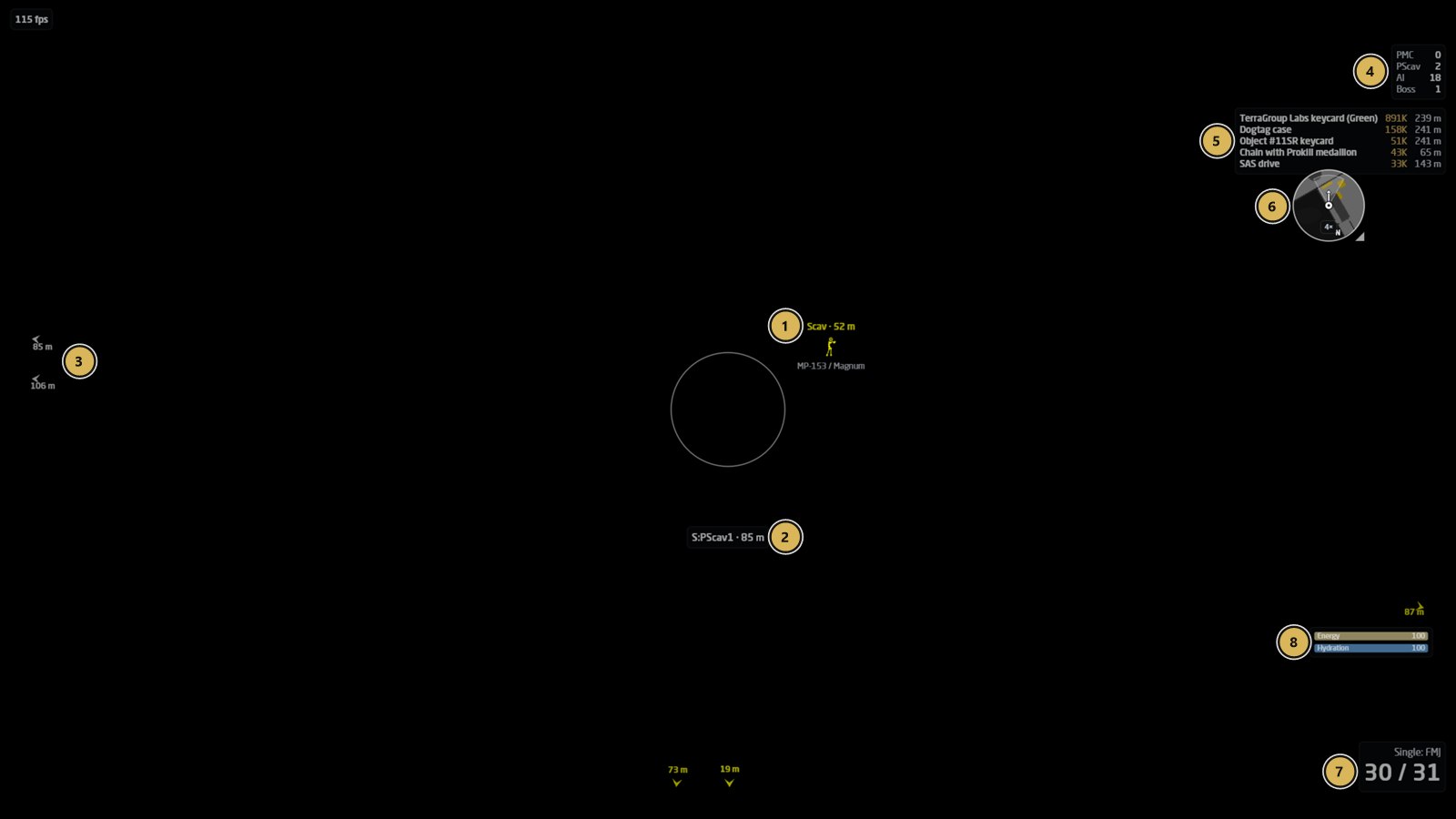
- Scav with skeleton, distance and weapon
- Aimbot target inside the aim radius
- Arrows to players outside your view
- PMC, player scav, AI and boss counters
- Best loot near you with price and distance
- Mini radar
- Magazine count and ammo type
- Energy and hydration
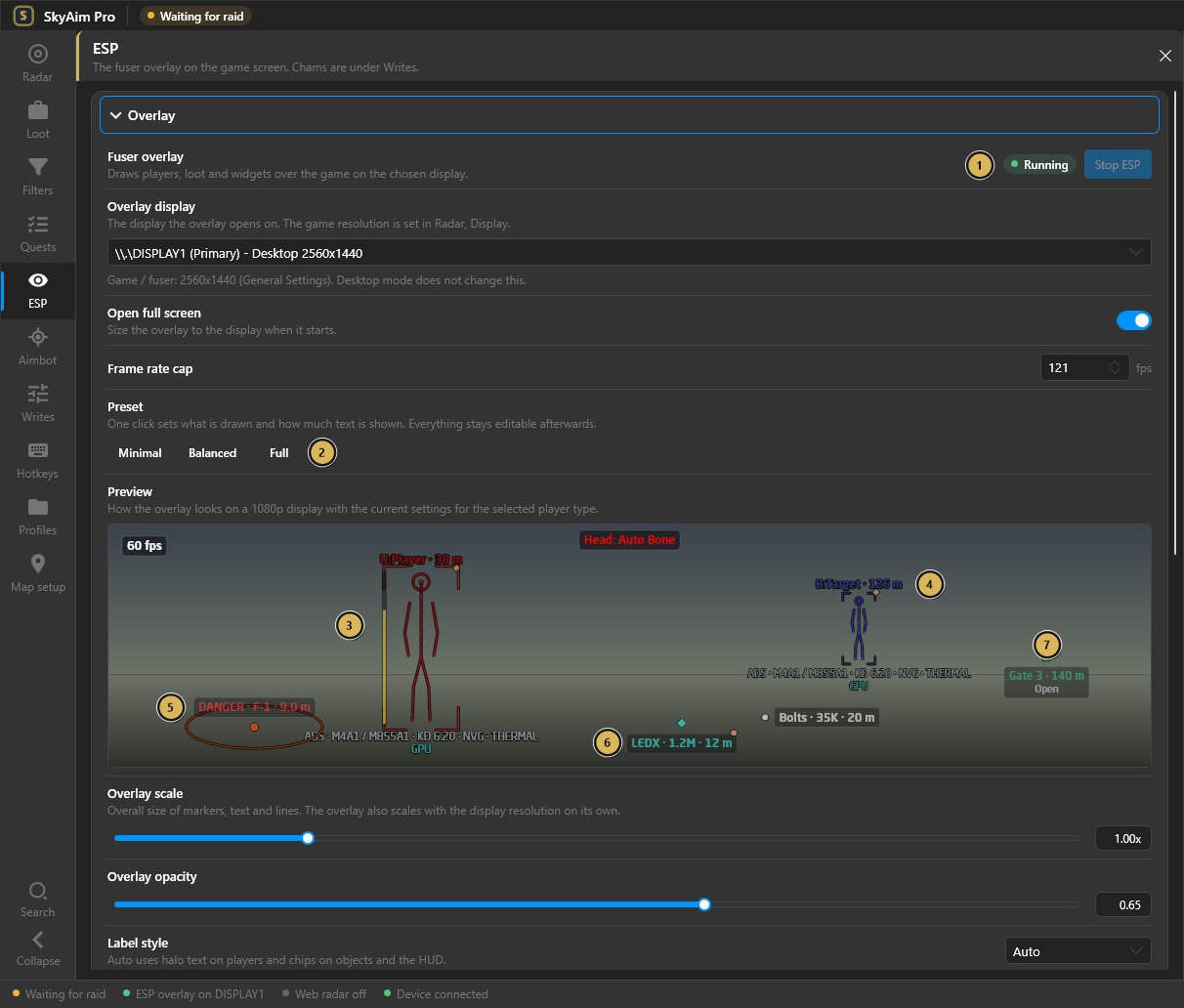
- Overlay running on the fuser display
- One-click presets: Minimal, Balanced, Full
- Player skeleton, name and distance
- Aimbot target marker
- Grenade danger ring
- Loot label with price
- Exfil with its status
Fuser overlay#
- Overlay display
- Which monitor shows the overlay. Pick the monitor that carries the fuser output. Changing it moves the overlay while it is open.
- Open full screen
- Opens the overlay window. Double-click it or press F11 to switch between windowed and full screen.
- Overlay scale / opacity
- Global size and transparency of everything the overlay draws.
- Frame rate cap
- Limits the overlay frame rate. 60 to 120 is plenty; higher values only cost CPU.
- Preset
- Balanced, Full and other starting points that set every option at once. Apply one, then fine-tune.
- Widget colours
- Swatches for the HUD widgets (magazine info, raid stats, bars).
- Preview
- A live mock-up of a player with your current style, so you can judge changes without a raid.
If boxes sit next to players instead of on them, the Game resolution in the Radar section does not match the game. Fix that first; overlay scale will not correct a resolution mismatch.
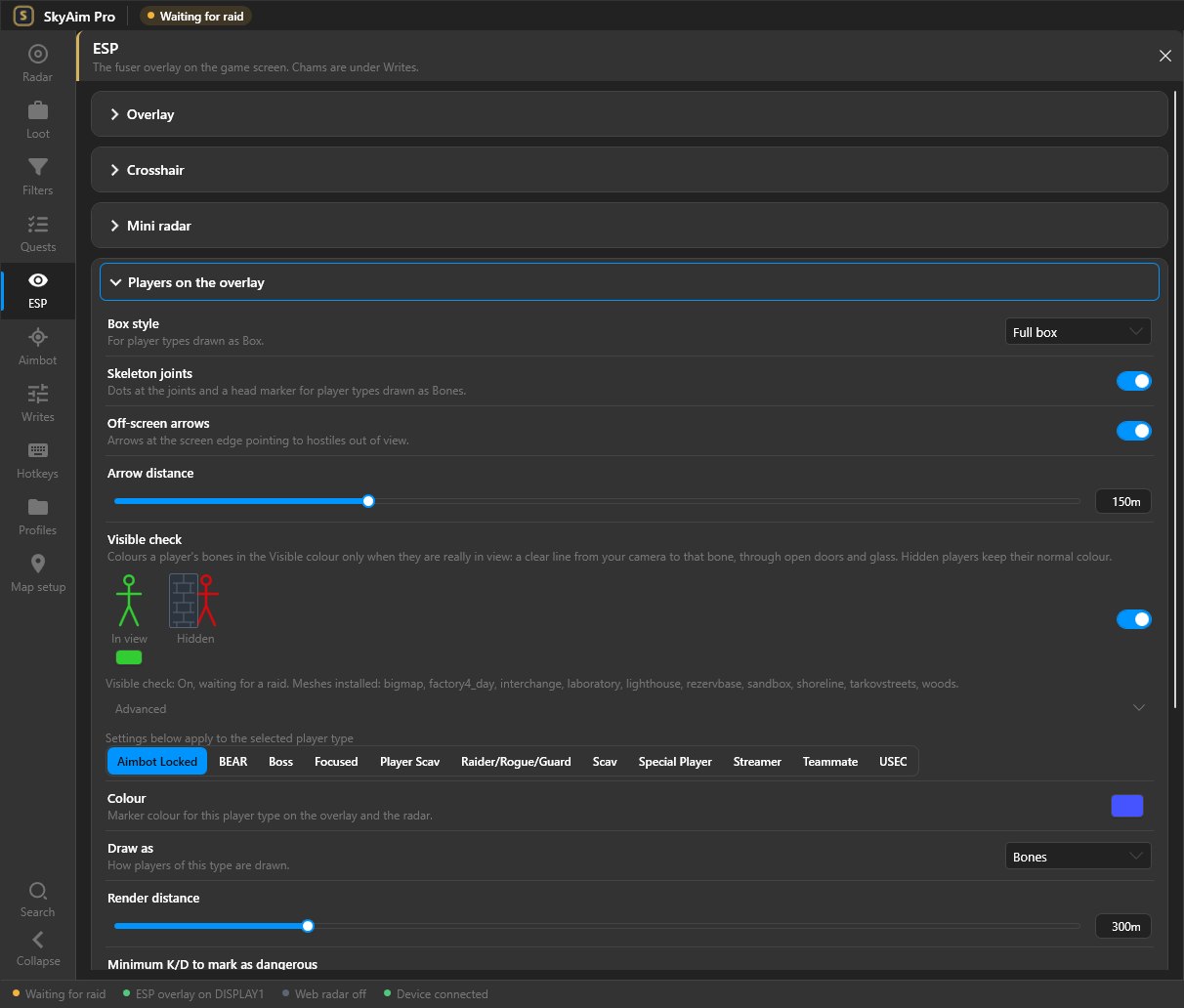
Players on the overlay#
Settings apply to the selected player type, exactly as on the radar.
- Draw as
- Box, skeleton, box + skeleton, or a simple dot. Box style switches between full and corner boxes; Line thickness and Skeleton joints adjust the drawing.
- Head circle
- A circle on the head, sized to the hitbox; handy together with the aimbot.
- Label style / Label detail
- Compact or full labels. Show on label picks name, distance, health, weapon, ammo type, gear, clothing and level.
- Render distance
- Players further than this are not drawn (metres).
- Off-screen arrows / Arrow distance
- Arrows at the screen edge pointing at players outside your view, within the given distance.
- High alert
- Marks players who are looking at you.
- Important indicator
- Flags players carrying filter-group loot.
- After death
- What to keep drawing for a corpse: nothing, a marker, or the gear value.
- Minimum K/D to mark as dangerous
- Same threshold as on the radar; needs profile lookups.
- Colour
- The swatch under the type list sets this type's colour on the overlay. The Visible swatch under the In-view legend figure is the colour used when the visible check says the player can see you.
Objects on the overlay#
Loot, containers, corpses, quest items and zones, exfils, doors, switches and grenades. Grenades can show a flight trail (with trail duration) and a blast radius; tripwires can show their line. Each object type has its own marker size, text size, max distance and, in the Colours row, its own colour.
Visible check (line of sight)#
One switch, Visible check, colours players differently depending on whether a wall is between you and them: the Visible swatch for players who can see you, the type's normal colour for hidden ones. It is on by default. The Advanced fold holds Unknown doors block (off by default), which decides what happens when a door's state cannot be read. Needs the map's collision file; see Line of sight.
Crosshair#
Draw a crosshair at the screen centre with your own shape, size and Colour. Fireport aim line has its own swatch. Useful when hip-firing or when the game crosshair is hidden.
Mini radar#
A small map in a corner of the overlay. Options: size, zoom (two hotkey actions), Show loot on it, Show exits on it, Rotate with your heading, and its own Colour theme.
Widgets and HUD layout#
Widgets are draggable boxes on the overlay: Magazine info, Raid stats, Energy and Hydration bars, Loot info, Quest info, the Aimbot FOV circle and the Aimbot target / lock indicator. HUD layout lets you move them and remembers the positions per profile.
Chams colour the player model inside the game, which requires memory writes. They are in Writes with the other write features, per player type and per body part.
Check the FAQ and the launcher message list first. If that does not solve it, send the publisher your newest file from output\Logs (or launcher-update.log for launcher problems).